
Booking Type #
The booking type allows you to determine whether everyone or only registered users can book appointments.
The options are:
- Guest Booking – any user visiting the site can book an appointment after entering the information set in later settings.
- Registered Booking – only registered users on the site can book appointments.
Booking Options #
The booking options allow you to specify whether the person booking the appointment should provide only their first name or both their first and last name.
Guest Booking Options #
If the “booking type” is set to “Guest Booking,” this setting allows you to specify whether the user booking the appointment should enter an email address.
Appointment Booking Redirect #
This setting allows you to define whether the user should be redirected to another page or remain on the current page after booking an appointment.
If the “Choose Specific Page” option is chosen, you need to select the page from the list where the user will be redirected after booking the appointment.
Time Slot Intervals #
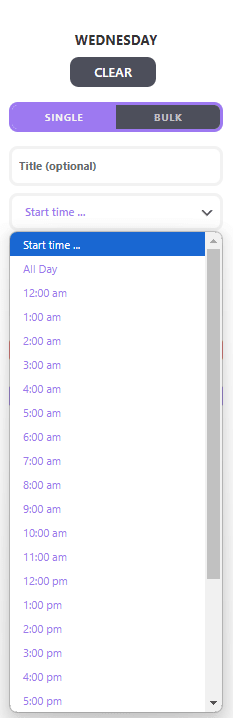
The booking frequency allows you to set the time intervals available when adding appointments in the calendar settings.
For example, if you set the frequency to every 1 hour, the dropdown list in the calendar settings will show time slots separated by one hour when adding appointments.
Appointment Buffer #
The appointment buffer setting helps avoid bookings that are too close to the appointment time. For example, selecting a buffer option of “1 hour” will prevent users from booking an appointment within an hour of its start time.
Prevent Appointments Before Date #
This setting allows you to block the ability to book appointments before a specified date.
Prevent Appointments After Date #
This setting allows you to block the ability to book appointments after a specified date.
Cancellation Buffer #
The appointment cancellation buffer setting prevents users from canceling an appointment within a specified time before the appointment time.
For example, selecting a cancellation buffer of “1 hour” will prevent users from canceling their appointment within an hour of the scheduled time.
Appointment Limit #
The booking limit setting helps prevent too many bookings from a single user. For example, setting the limit to 1 booking will prevent the same user from making a second booking.
New Appointment Default #
This setting allows you to decide whether appointments made by users should be accepted manually or automatically.
Display Options #
Hide “Default” in the calendar switcher #
This option hides the default calendar from the list of calendars.
Hide weekends in the calendar #
This option hides weekends in the calendar.
Hide “Add to Calendar” button in the Profile appointment list #
Hides the add to calendar button.
Hide time slots (when a time slot title exists) #
This option hides the titles of appointments entered in the calendar settings.
Hide end times (show only start times) #
This option hides the end date of the appointment. Only the start date is displayed.
Hide the number of available time slots #
This option hides the number of available spots.
Hide the already booked time slots (cannot be used with “Public Appointments”) #
This option hides appointment slots that are fully booked and have no available spots. This option cannot be used with the “Public Visits” option.
Public Appointments (show names under booked appointments) #
This option shows the names under booked appointments.
Other Options #
Do not allow users to cancel their own appointments. #
Users are not able to cancel their reservations.
Redirect users (except Admins and Booking Agents) from the “/wp-admin/” URL. #
A user attempting to log in to the admin panel will be redirected to another page.
Hide “Appointments” menu from Admin Bar. #
This option allows for the removal of the “appointments” button from the top panel on the administrator screen in WordPress.